- What is WordPress SEO and Why It Matters
- Why You Can Trust This Guide
- First Settings to Configure in WordPress
- Choosing the Best SEO Plugin
- On-Page SEO Basics You Can Do Today
- Technical SEO Without Code
- Content Strategy That Ranks
- Free Google Tools Every Site Owner Needs
- SEO Plugin Comparison Table
- Frequently Asked Questions
- Final Verdict and Next Steps
You built a WordPress website. Congrats. Now comes the part most people dread: getting Google to actually notice it. The good news? You do not need to be a developer. You do not need to touch code. You just need the right steps in the right order.
This WordPress SEO guide for non developers covers everything from your first plugin install to writing content that ranks. Whether you are a blogger, a small business owner, or a freelancer, this guide was built for you.
Quick Answer: WordPress SEO for non developers means optimizing your site for search engines using free plugins and built-in settings. No coding is required. You can improve your search rankings entirely through your WordPress dashboard.

What is WordPress SEO and Why It Matters
WordPress SEO is the process of making your WordPress website easier for search engines like Google to find, read, and rank. The better your SEO, the higher your pages appear in search results. More visibility means more visitors and more business.
WordPress is already one of the most SEO-friendly platforms available. It generates clean code, supports custom URLs, and has a massive ecosystem of plugins built specifically for search optimization. That means you are starting from a strong position even before you do anything.
Why WordPress is Great for SEO Beginners
Plugin Power
Thousands of free SEO plugins handle the technical work for you automatically.
Clean Permalinks
Customize your URL structure with a single click in your settings panel.
Mobile Ready
Most WordPress themes are mobile-responsive right out of the box.
Why You Can Trust This Guide
This guide draws from real-world experience managing WordPress websites for clients across the USA and Canada. Every tip has been tested on live sites. Nothing here is theory for its own sake.
No-code methods only
Tested on real client sites
Aligned with Google guidelines
Updated for 2025
First Settings to Configure in WordPress
Before you install a single plugin, a few built-in settings can make or break your SEO. These take less than five minutes to set up and apply to every page on your site.
Step 1: Allow Search Engines to Index Your Site
Critical Warning
WordPress has a setting that tells Google to ignore your entire website. It is meant for sites under development. If you leave it on after launch, Google will never index your pages no matter how good your content is.
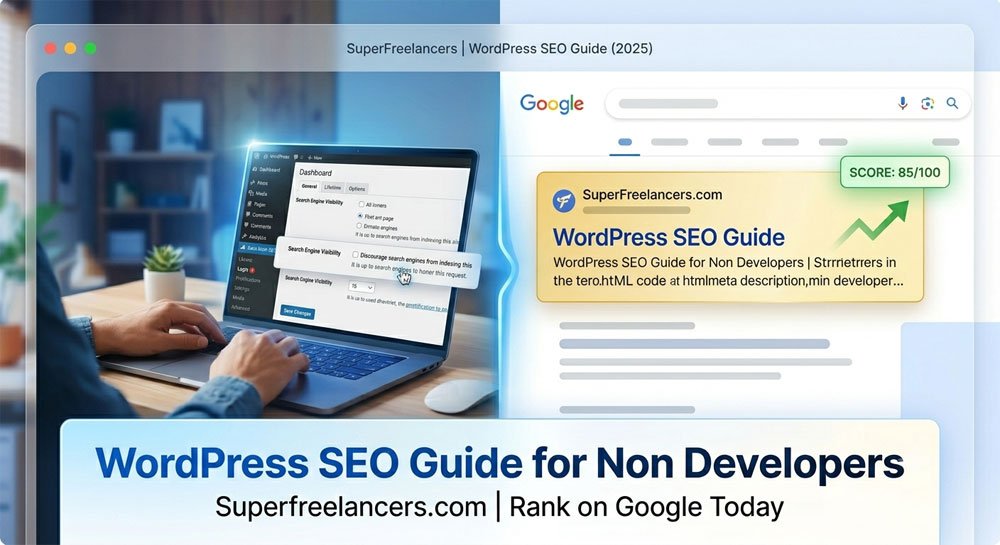
Go to Settings > Reading in your WordPress dashboard. Find the checkbox labeled "Discourage search engines from indexing this site" and make sure it is unchecked. That one step alone can unlock your entire site for Google.
Step 2: Set SEO-Friendly Permalinks
Permalinks are the URL structure for your posts and pages. Google reads these URLs to understand what your content is about. A keyword-rich URL is a ranking signal.
Go to Settings > Permalinks and select Post Name. This turns a messy URL like yoursite.com/?p=123 into a clean yoursite.com/your-post-title.
Do Not Change Permalinks on Existing Sites
If your site has been live for more than six months, changing the permalink structure will break all existing URLs. Google will treat them as dead links and you will lose your current rankings.
Step 3: Set Your Site Title and Tagline
Go to Settings > General. Set a clear site title that includes your main keyword or brand name. The tagline appears in browser tabs and search results on some themes, so make it descriptive and concise.

Choosing the Best SEO Plugin for Non Developers
An SEO plugin is the most important tool in your WordPress setup. It handles meta titles, meta descriptions, XML sitemaps, schema markup, and much more. Without one, you are optimizing with one hand tied behind your back.
The three most popular options are Rank Math, Yoast SEO, and All in One SEO (AIOSEO). Each has a free version that works well for most websites.
Best Overall: Rank Math (Free)
Rank Math is the most feature-rich free SEO plugin available in 2025. It includes redirect management, 404 monitoring, Google Search Console integration, and up to five focus keywords per post, all completely free.
- 18 types of schema markup built in
- Seamless integration with Elementor and Divi
- Minimal impact on site speed
- AI-powered content suggestions
Best for Absolute Beginners: Yoast SEO
Yoast SEO uses a simple traffic-light system to guide your optimization. Green means good. Orange means improve. Red means fix it now. For complete beginners, this visual feedback is incredibly reassuring and easy to follow.
- Red, orange, green scoring for each post
- Excellent readability analysis
- 10 million plus active installations
- Step-by-step setup wizard
Best for WooCommerce Sites: All in One SEO
AIOSEO specializes in WooCommerce product SEO, local business SEO, and news sitemaps. If you run an online store or a local service business, this plugin offers the most targeted tools.
SEO Plugin Comparison Table
| Feature | Rank Math Free | Yoast Free | AIOSEO Free |
|---|---|---|---|
| Focus Keywords | 5 per post | 1 per post | 1 per post |
| Schema Markup | 18 types free | Limited free | Limited free |
| Redirect Manager | Free | Premium only | Premium only |
| 404 Monitor | Free | Not available | Not available |
| Google Analytics Integration | Free | Premium | Partial free |
| Beginner Friendly | Good | Excellent | Good |
| Pro Pricing / Year | $59 | $99+ | $49 |
Pricing and features accurate as of June 2025. Always verify on the official plugin website.
On-Page SEO Basics You Can Do Today
On-page SEO refers to everything you do on a single page to help it rank. Unlike technical SEO, on-page SEO is entirely within your control as a non developer. Here is what to focus on for every post and page you publish.
1. Write a Compelling Meta Title
Your meta title is the blue clickable text that appears in Google search results. It is the single most important on-page SEO element. Include your primary keyword near the beginning and keep it under 60 characters.
Example:
Bad: Welcome to My Blog Post About SEO for WordPress Users
Good: WordPress SEO Guide for Non Developers | 2026
2. Optimize Your Meta Description
The meta description is the short paragraph below your title in search results. It does not directly affect rankings but it dramatically affects click-through rate. Write 150 to 160 characters that explain what the page is about and give people a reason to click.
3. Use Heading Tags Properly
Every page should have exactly one H1, which is usually the page title in WordPress. Use H2 for main sections and H3 for subsections. This structure helps Google understand the hierarchy of your content.
Heading Structure Cheat Sheet:
- H1 Your main post or page title. Use only once per page.
- H2 Main section headings. Can use multiple times.
- H3 Subsections under each H2. Keep them organized.
4. Optimize Your Images
Every image you upload should have a descriptive file name and an alt text. Alt text helps visually impaired users and tells Google what your image shows. Include your target keyword naturally where it fits.
- Rename image files before uploading. Use
wordpress-seo-guide.jpgnotIMG_4582.jpg - Always fill in the Alt Text field when you add an image
- Compress images before uploading using a free tool like TinyPNG
- Use plugins like Smush or ShortPixel to auto-compress on upload
5. Build Internal Links
Internal links connect your pages together. They help visitors explore your site and help Google discover more of your content. Every new post you write should link to at least two or three other relevant posts.
For example, if you are reading this guide, you might also find value in learning how to build a WordPress website without coding or browsing more WordPress tutorials on SuperFreelancers.

Technical SEO Without Writing Code
Technical SEO sounds intimidating but most of it is handled by your SEO plugin. There are a few extra steps worth taking that will give your site a measurable ranking advantage.
Submit Your XML Sitemap to Google
An XML sitemap is a file that lists every page on your website. It makes it easier for Google to crawl and index your content. Both Rank Math and Yoast generate this automatically.
How to Submit Your Sitemap:
- Open Google Search Console
- Click Sitemaps in the left menu
- Type
sitemap_index.xmland click Submit - Google will begin crawling your site within days
Improve Site Speed
Page speed is a confirmed Google ranking factor. A slow site will rank lower than a faster competitor with similar content. The biggest speed wins come from caching and image compression.
Caching Plugins
WP Rocket (paid) or W3 Total Cache (free) will dramatically reduce your load time with zero code.
Image Compression
Smush or ShortPixel automatically compress every image you upload without you doing anything.
CDN
Cloudflare free plan delivers your pages from a server near your visitor, reducing load times globally.
Make Sure You Have HTTPS
HTTPS (the padlock icon in your browser bar) is a ranking signal according to Google. Most modern hosting providers like Bluehost and SiteGround include a free SSL certificate. Activate it from your hosting control panel.
Check Your Mobile Responsiveness
Google uses mobile-first indexing, meaning it ranks the mobile version of your site above the desktop version. Use Google's Mobile Friendly Test to verify your site passes.
Content Strategy That Actually Ranks
Good technical SEO gets your site ready for Google. But content is what actually earns rankings. Google wants to show users the most helpful, relevant, and trustworthy result for every search query.
Understand Search Intent Before You Write
Search intent is what the person actually wants when they type something into Google. If you write an article about "how to bake bread" but structure it as a product page pushing bread makers, Google will not rank it well because the intent does not match.
Informational
"How to set up SEO" wants a guide or tutorial.
Comparison
"Rank Math vs Yoast" wants a head-to-head comparison.
Transactional
"Buy SEO plugin" wants a product page with pricing.
Keyword Research for Non Developers
You do not need expensive tools to find good keywords. Google Trends is free. So is the search bar itself. Type your topic and look at the autocomplete suggestions. Those are real searches real people are making right now.
- Use Google Autocomplete to find long-tail keywords people actually search
- Check the People Also Ask section in Google for question-based keywords
- Use Ahrefs Free Keyword Generator for volume data
- Target long-tail keywords (three or more words) since they are easier to rank for as a new site
The E-E-A-T Framework: Google's Invisible Ranking Checklist
E-E-A-T stands for Experience, Expertise, Authority, and Trust. Google uses these signals to decide how much to trust your content. The good news: you build EEAT through the content itself, not through code.
Experience
Share first-hand knowledge and real results
Expertise
Go deep on topics. Cover them fully and accurately
Authority
Get backlinks from reputable sites in your niche
Trust
Add author bios, contact pages, and accurate info

Free Google Tools Every WordPress Site Owner Needs
Google provides two essential free tools that give you direct data about how your site performs. Both are mandatory, not optional. Set them up before you do anything else.
Google Search Console
search.google.com/search-consoleThis is the direct line between your website and Google. It shows you which keywords are bringing in traffic, which pages have errors, and whether Google can access your content.
- Submit your XML sitemap here
- Monitor Core Web Vitals scores
- Fix crawl errors before they hurt rankings
Google Analytics 4
analytics.google.comGA4 tracks visitor behavior on your site. See where people come from, how long they stay, and which pages they leave on. This data helps you improve content that is already ranking.
- Track organic search traffic growth over time
- Identify your best-performing content
- Connect with Rank Math for in-dashboard data
WordPress SEO Quick Wins Checklist
Use this checklist to get your site SEO-ready in under two hours. Check each item off as you complete it.
Related Tutorials You Will Love
How to Build a WordPress Website Without Coding
A beginner's guide to launching your first WordPress site from scratch.
Browse All WordPress Tutorials
Explore the full library of step-by-step guides on SuperFreelancers.
SuperFreelancers Home
Tutorials, tools, and resources for freelancers and site owners.
Frequently Asked Questions
Final Verdict: Your WordPress SEO Action Plan
You now have everything you need to start ranking on Google without writing a single line of code. WordPress SEO for non developers comes down to four pillars: the right settings, the right plugin, quality content, and the right tools to track it all.
Your Next 3 Actions Right Now:
Install Rank Math and run the setup wizard
Takes 10 minutes. Unlocks meta titles, sitemap, and schema for your entire site.
Connect Google Search Console and submit your sitemap
Tells Google your site exists and ensures every page gets crawled.
Publish one well-optimized blog post targeting a long-tail keyword
Use the on-page checklist from this guide. Start getting traction in the next 30 days.
SEO is not a one-time job. It compounds over time. Every post you optimize, every internal link you add, and every improvement you make builds on the last. Start today and your future self will thank you. For more hands-on WordPress guides, visit SuperFreelancers Tutorials.
Expert Insider Tip
From real-world WordPress SEO experience
The fastest SEO win most non developers miss is the Internal Link Audit. Go back to your five most-visited pages and add links from each of them to your three newest posts. This passes ranking authority from established pages to new ones and speeds up indexing dramatically. It takes 20 minutes and costs nothing. Do this every time you publish.